> For the complete documentation index, see [llms.txt](https://docs.gradient.works/kb/llms.txt). Markdown versions of documentation pages are available by appending `.md` to page URLs; this page is available as [Markdown](https://docs.gradient.works/kb/analytics/working-activities.md).
# Working Activities
Define which Salesforce tasks and events represent rep engagement
Not all activity logged in Salesforce is created equal. Gradient Works allows you to create named categories of activities based on specific criteria to use when analyzing account coverage so you can be sure you're only counting meaningful rep activity.
Salesforce provides two types of activities: tasks and events. Many organizations store task records for emails, calls or any other type of rep outreach. They also may log tasks for marketing activities like content downloads or email clicks. These might be distinguished by record type or some other fields. Similarly, they may log events for key meetings during the sales cycle.
For example, you might a category of activities called "Calls" that represents only tasks that are logged when reps dial. This will then be available as "Calls" in [Coverage Reports](/kb/analytics/account-coverage.md) and [Rep Reports](/kb/analytics/reps-report.md).
### Accessing working activities
To access working activities, click "Settings" in the left nav and open the "Working Activities" section of the "Settings" pane.
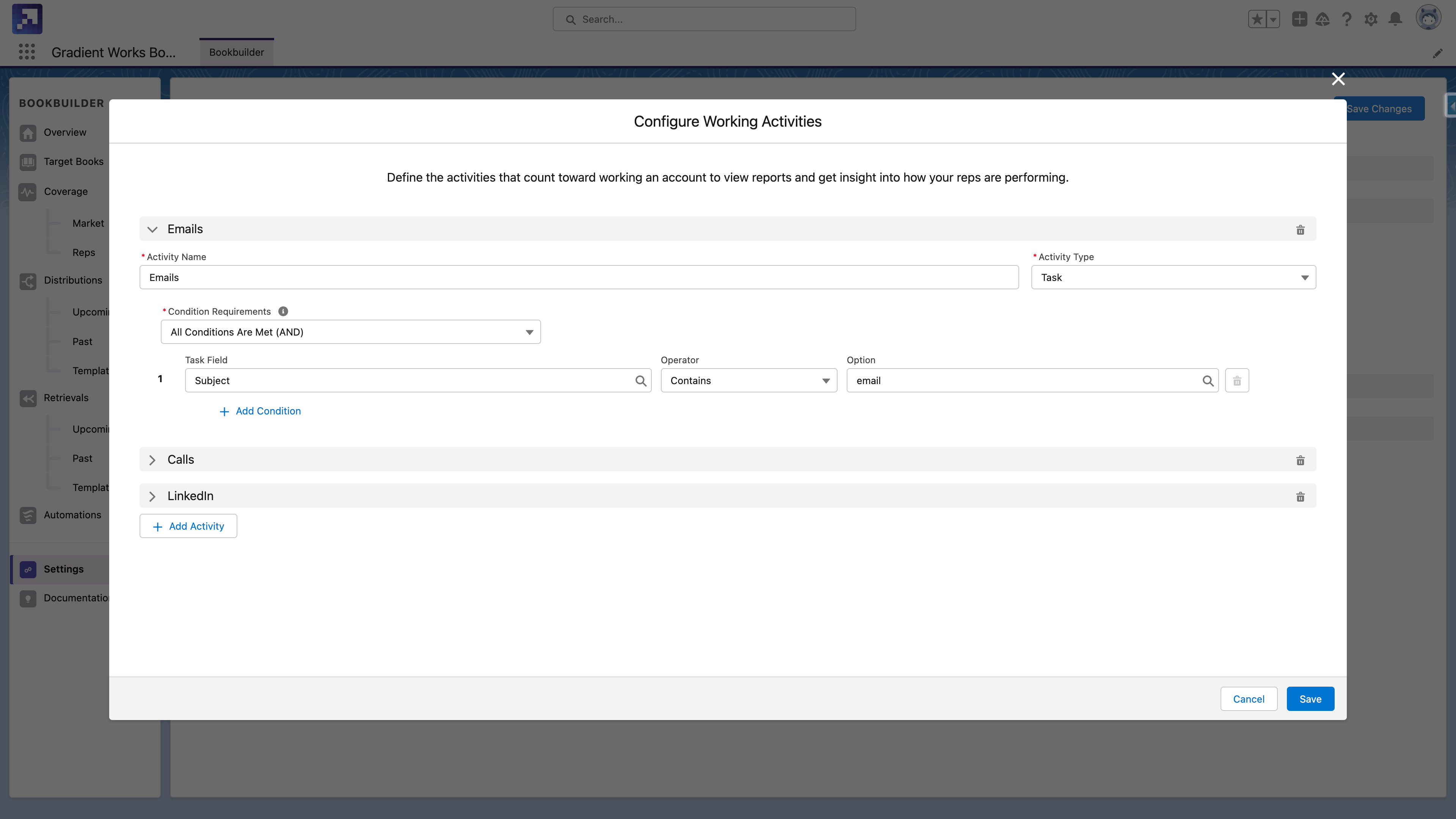
To configure working activities, click "Configure Working Activities". This will open the "Configure Working Activities" dialog.
### Configuring working activities
Configure Working Activities dialog
If you have existing categories of working activities, they'll be listed in expandable sections. To create a new category of working activities, scroll to the bottom of the dialog and click "+ Add Activity".
{% hint style="warning" %}
Keep working activity categories mutually exclusive. If a task or event matches more than one category, coverage report numbers may not total as expected.
{% endhint %}
Each category has the following configuration:
* Activity Name - a unique name for the activity
* Activity Type - whether the activity is a Salesforce task or event
* Criteria - the conditions that the task or event must meet to be considered part of the category. The fields available differ depending on whether "Activity Type" is set to "Task" or "Event".
### Deleting working activities
To delete a category of working activities, click the trash can icon in the category header.
{% hint style="warning" %}
Currently you cannot delete a working activity category that's in use by existing account coverage reports.
{% endhint %}
### Working activities examples
Working activities provide a flexible way to define the activities that matter in your organization. Here are some example use cases:
* Calls - most auto-dialers and sales engagement platforms capture calls as tasks and even tag whether they were connected or not. Define specific categories for call types.
* Sequence emails - most sales engagement platforms provide information about the sequence or cadence that an automated email belongs to. Use that information to track emails auto-generated by a sequence vs ones sent by the rep individually.
* Inbound emails - most sales engagement platforms provide a flag to indicate whether an Email activity is inbound from the prospect or outbound. Specify your criteria to only match inbound emails to track which ones come from the prospect.
* Key meetings - If your organization tracks specific types of meetings as events during the sales process (e.g. Discovery Call, Demo, ROI Review), configure a category for each key meeting type and track them separately.