> For the complete documentation index, see [llms.txt](https://docs.gradient.works/kb/llms.txt). Markdown versions of documentation pages are available by appending `.md` to page URLs; this page is available as [Markdown](https://docs.gradient.works/kb/mcp/setup_claude.md).
# Setup: Claude (Desktop, Web, or CLI)
Connect the Gradient Works MCP server to Claude Desktop, Web, or CLI
## Set up with the Gradient Works plugin
The Gradient Works plugin configures the MCP and installs the included Gradient Works skills.
### Ask your agent to set it up
Paste the following text into your agent:
```
Can you help me set up Gradient Works by following this guide?
https://github.com/Gradient-Works/agent-plugins/blob/main/GETTING_STARTED.md
```
### Install it yourself
In Claude Code, run these commands:
```
/plugin marketplace add Gradient-Works/agent-plugins
/plugin install gradient-works@gradient-works-plugins
```
The MCP server comes with the plugin. Sign in when prompted. For Cowork, Claude Desktop, claude.ai, and additional setup details, see the [agent-plugins README](https://github.com/Gradient-Works/agent-plugins/blob/main/README.md).
## Set up the MCP directly
### Claude Desktop or Web — Personal
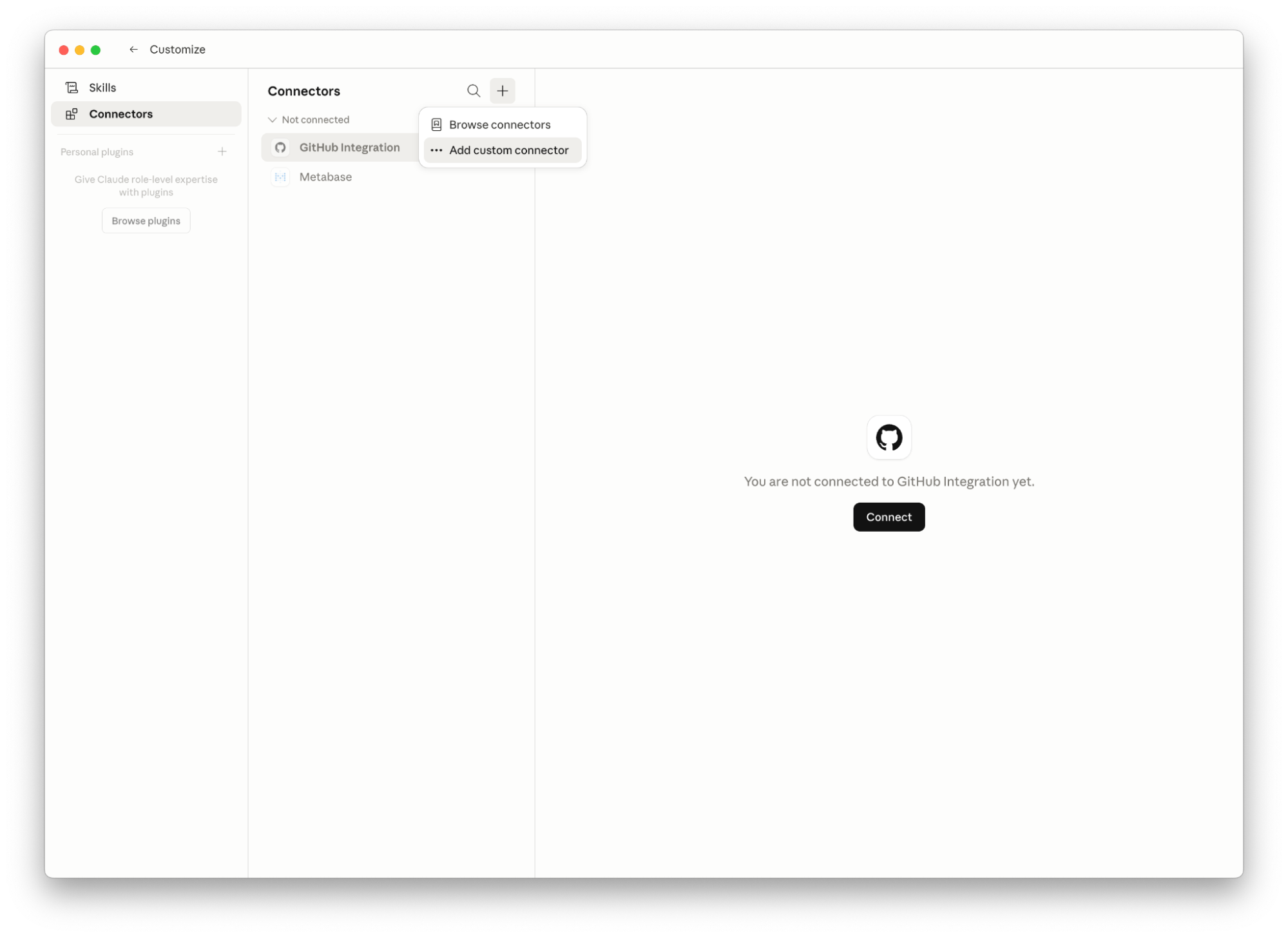
1. Go to **Customize > Connectors**.
2. Click the **+** button and choose **Add custom connector**.
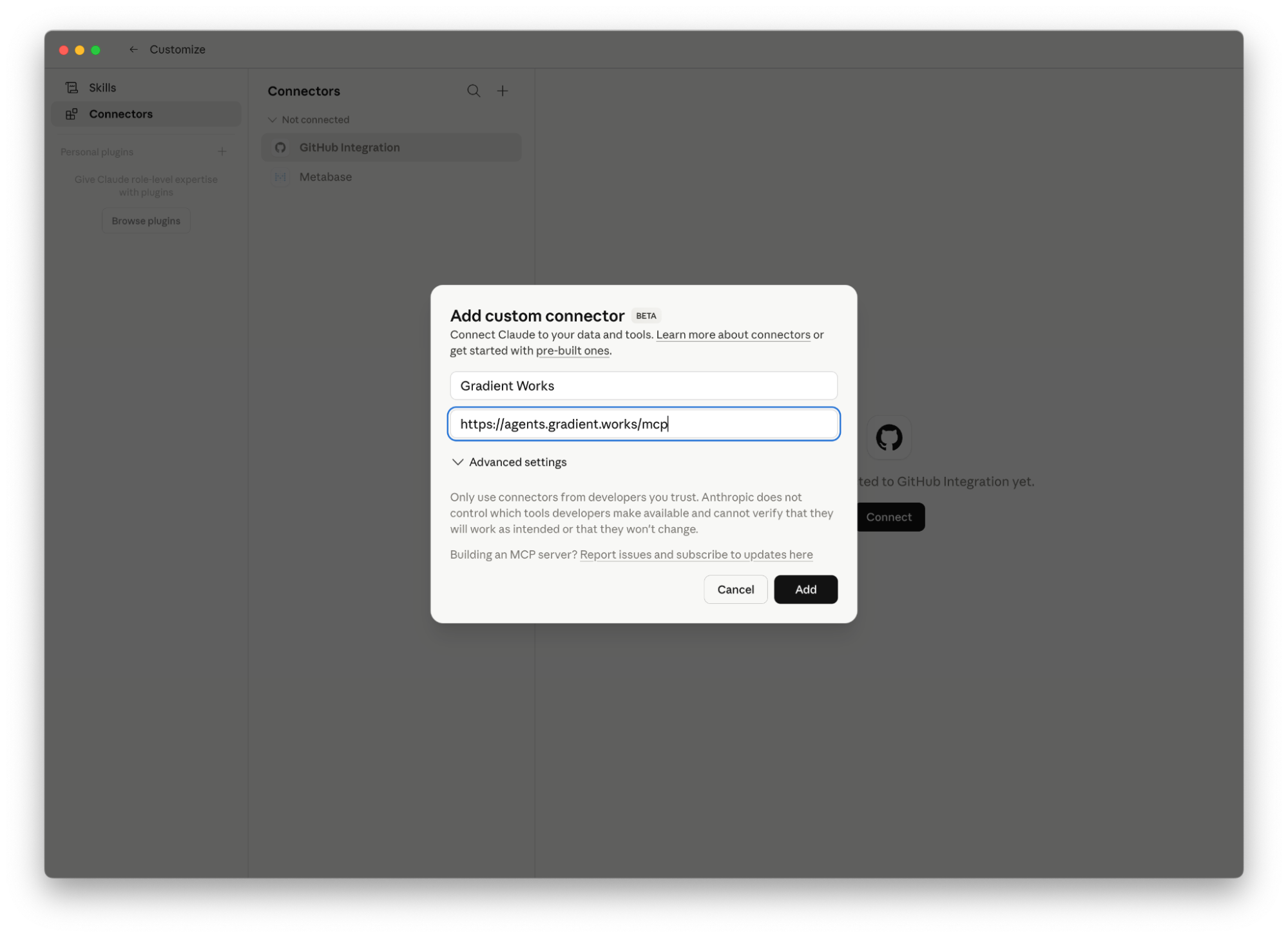
3. Fill in the connector details:
* **Name:** Gradient Works
* **Remote URL:** `https://agents.gradient.works/mcp`
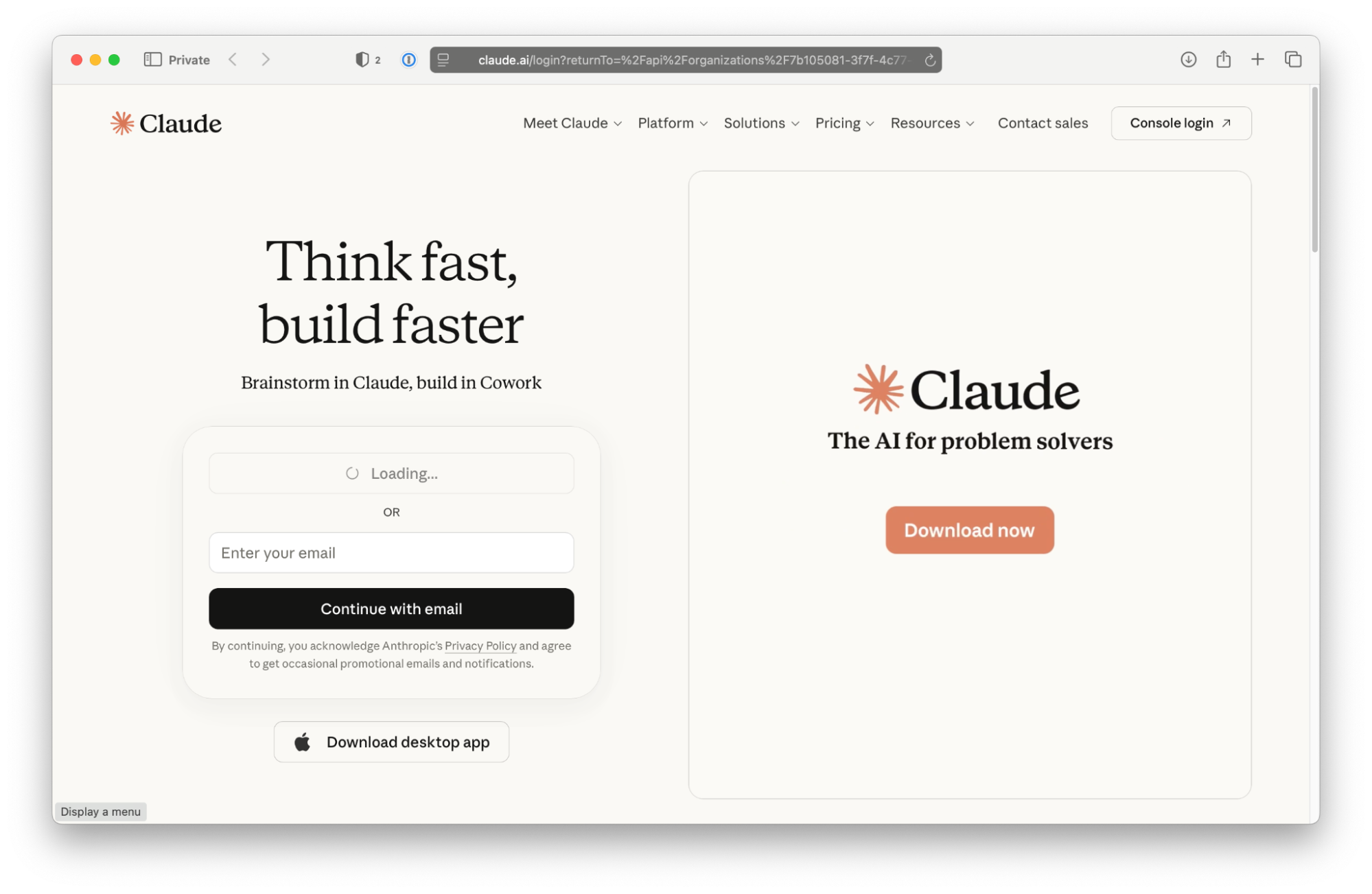
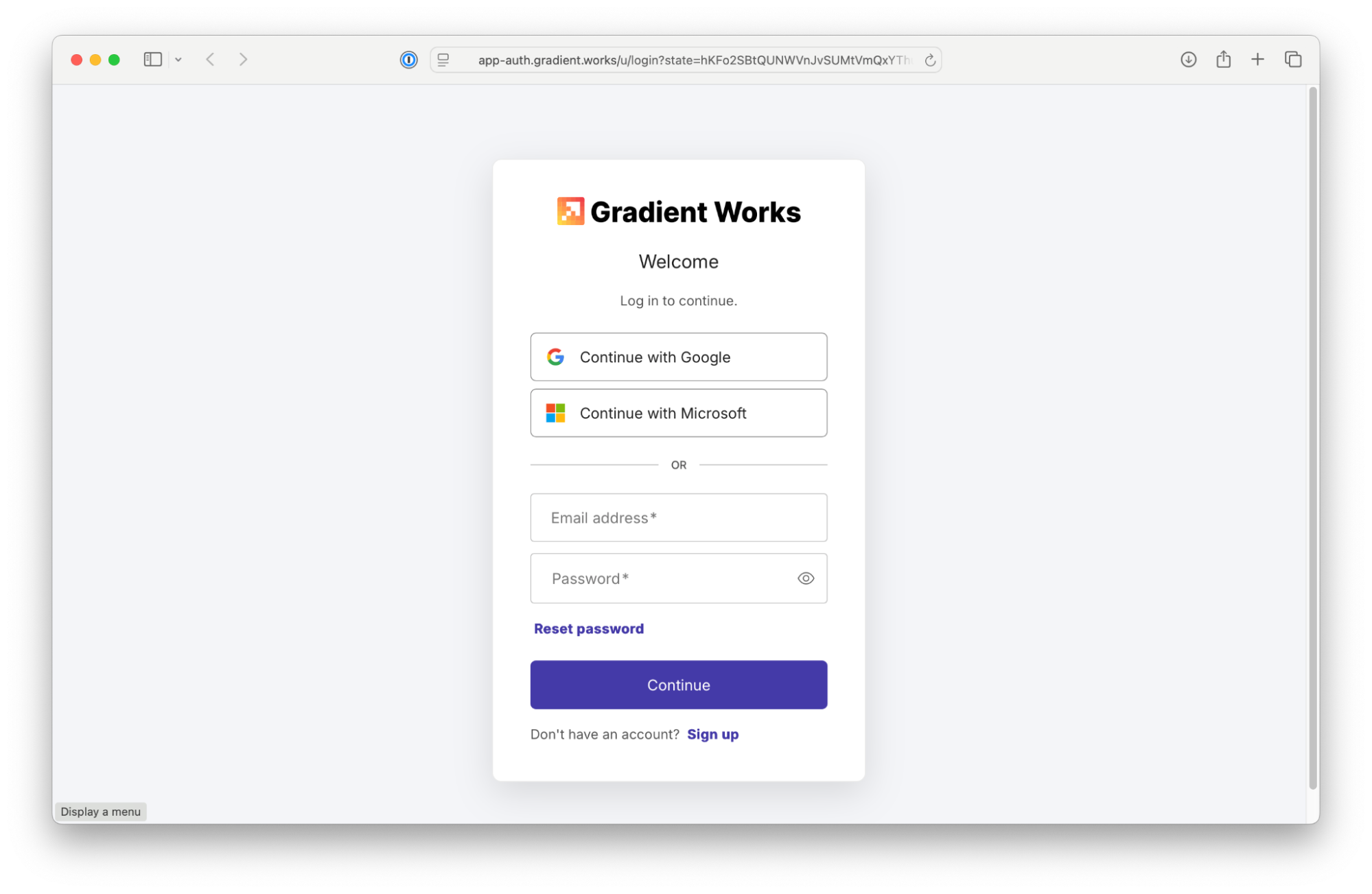
4. When prompted, sign into Claude, then sign into Gradient Works with your Gradient Works credentials.
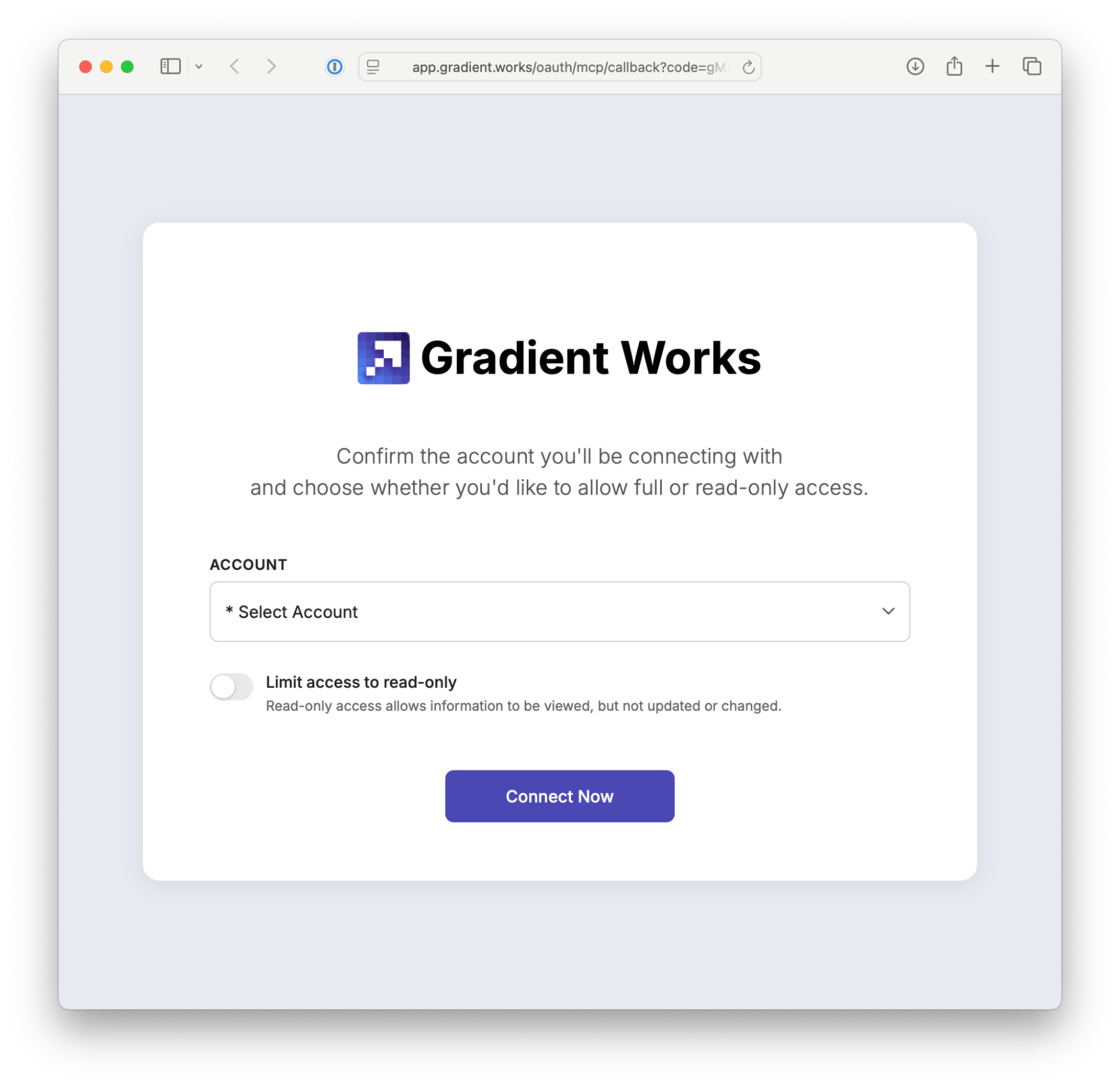
5. Select your account and permission settings as needed.
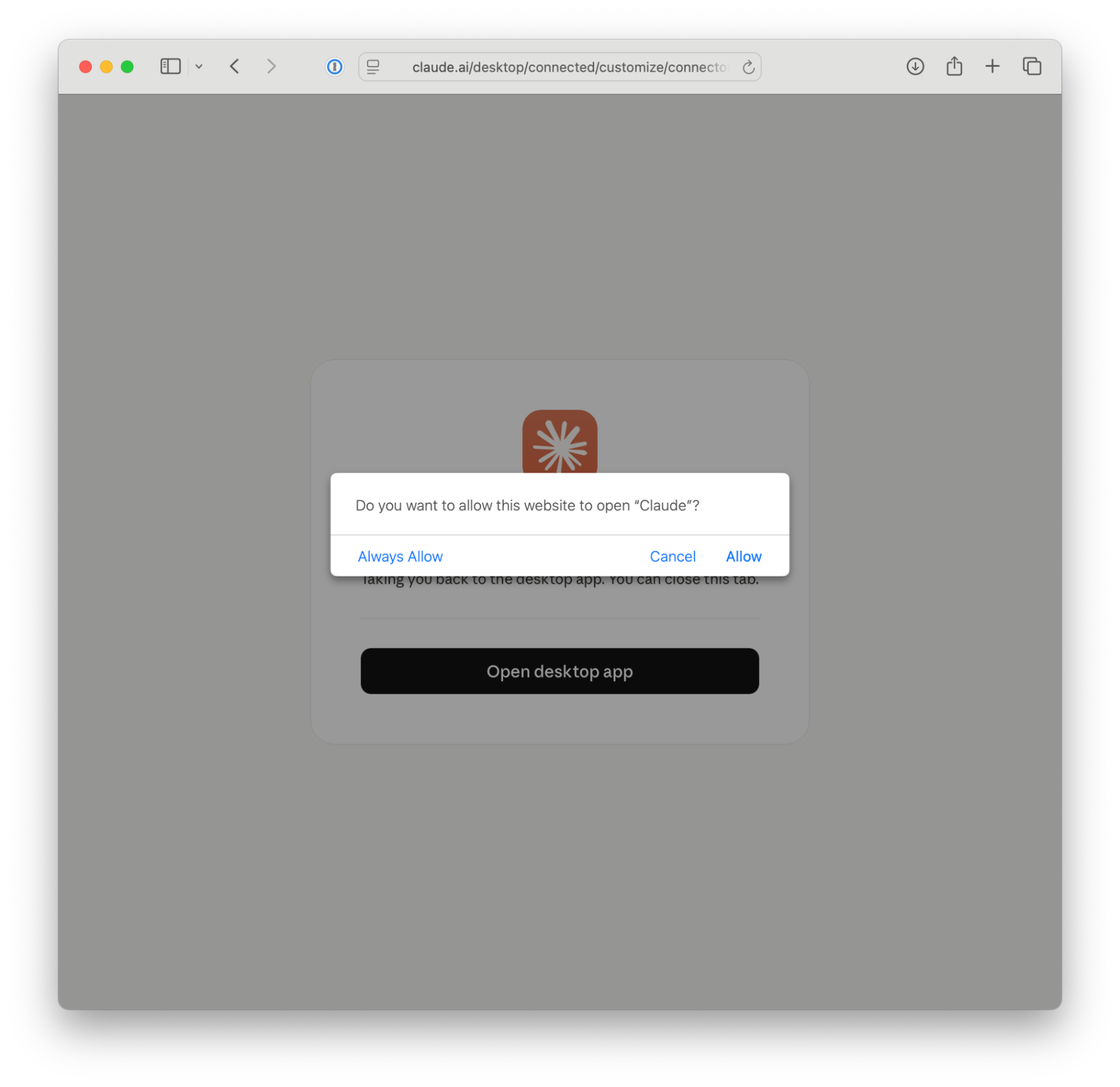
6. Click **Connect Now** to return to Claude.
***
### Claude Desktop or Web — Team
Organization admins must add the connector at the org level before individual users can connect.
#### Admin: add the connector for your organization
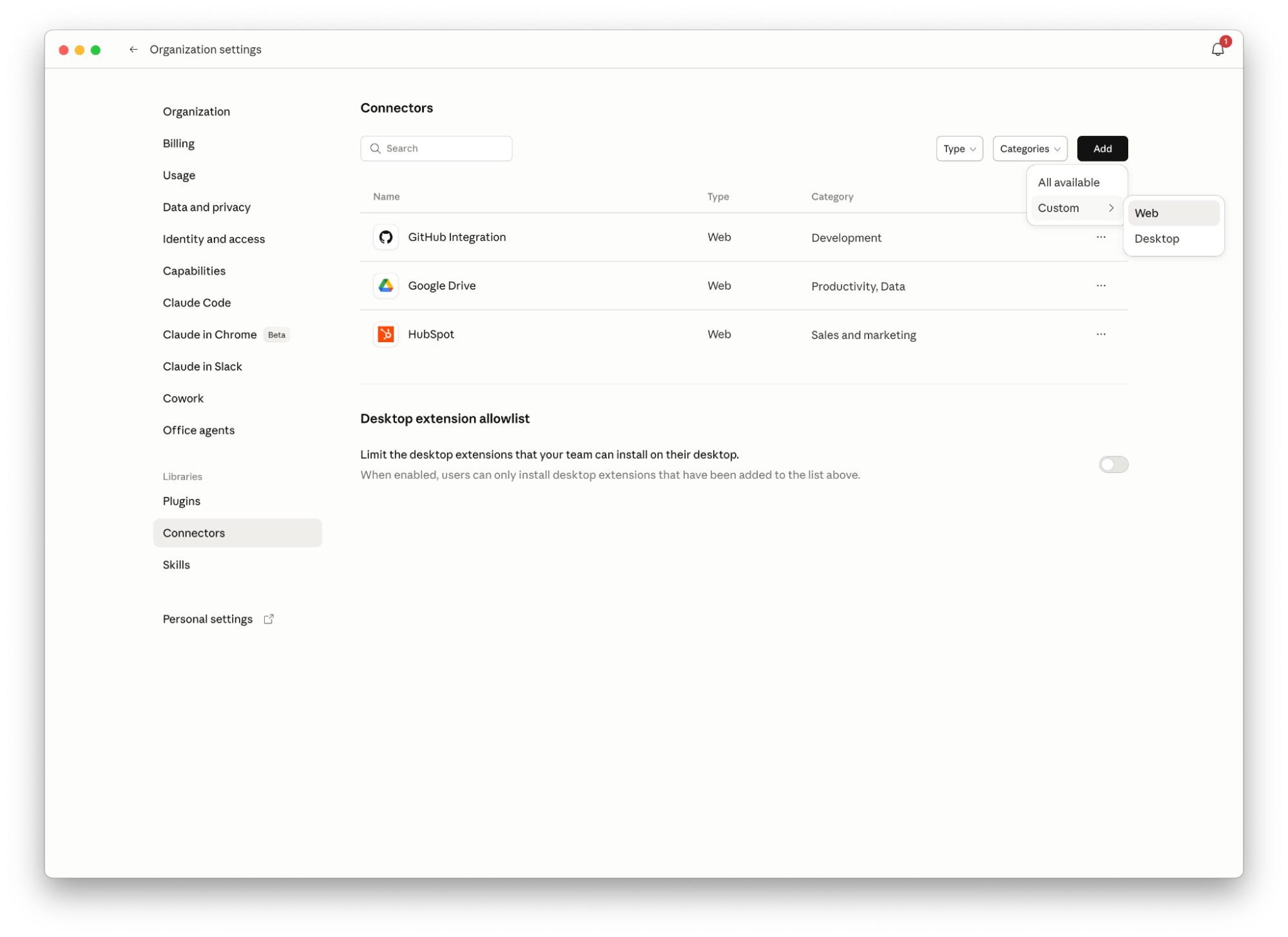
1. Go to **Organization Settings > Connectors**.
2. Click **Add > Custom > Web**.
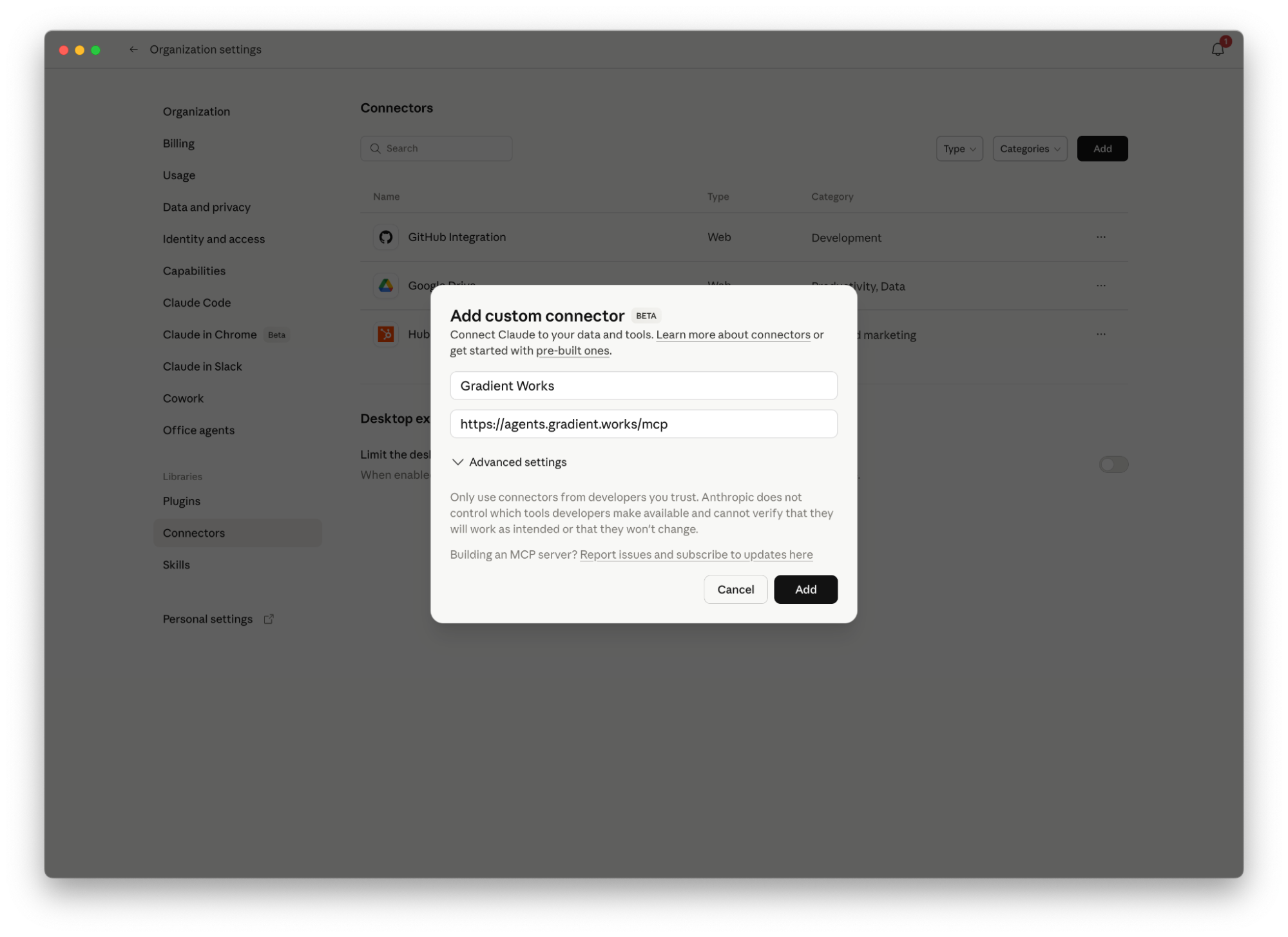
3. Fill in the connector details:
* **Name:** Gradient Works
* **URL:** `https://agents.gradient.works/mcp`
4. Save the connector.
#### Users: connect to the org connector
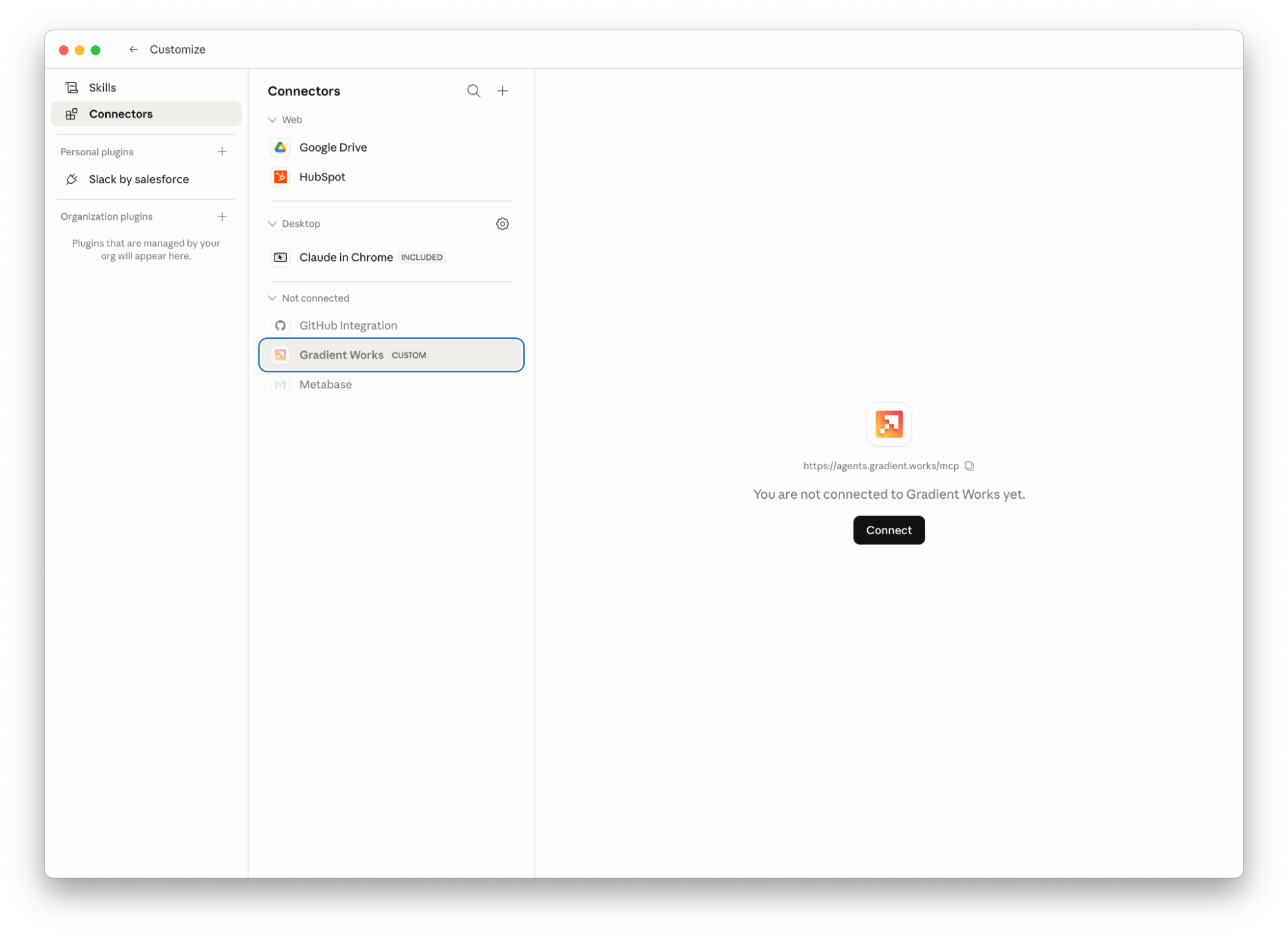
1. Go to **Customizer > Connectors**.
2. Find **Gradient Works** under Not Connected and click **Connect**.
3. When prompted, sign into Claude, then sign into Gradient Works with your Gradient Works credentials.
4. Select your account and permission settings as needed.
5. Click **Connect Now** to return to Claude.
***
### Claude Code CLI
1. Run the following command in your terminal:
```bash
claude mcp add --transport http gradient-works https://agents.gradient.works/mcp
```
2. When prompted, sign into Gradient Works with your Gradient Works credentials.
3. Select your account and permission settings as needed.
4. Click **Connect Now** to return to the CLI.