> For the complete documentation index, see [llms.txt](https://docs.gradient.works/kb/llms.txt). Markdown versions of documentation pages are available by appending `.md` to page URLs; this page is available as [Markdown](https://docs.gradient.works/kb/mcp/setup_gemini.md).
# Setup: Gemini (Web, macOS, or Antigravity)
Connect the Gradient Works MCP server to Gemini Web, the Gemini macOS app, or Antigravity
## Gemini Web or macOS
The steps below are the same in Gemini Web and the Gemini macOS app. Screenshots show the macOS app.
{% hint style="info" %}
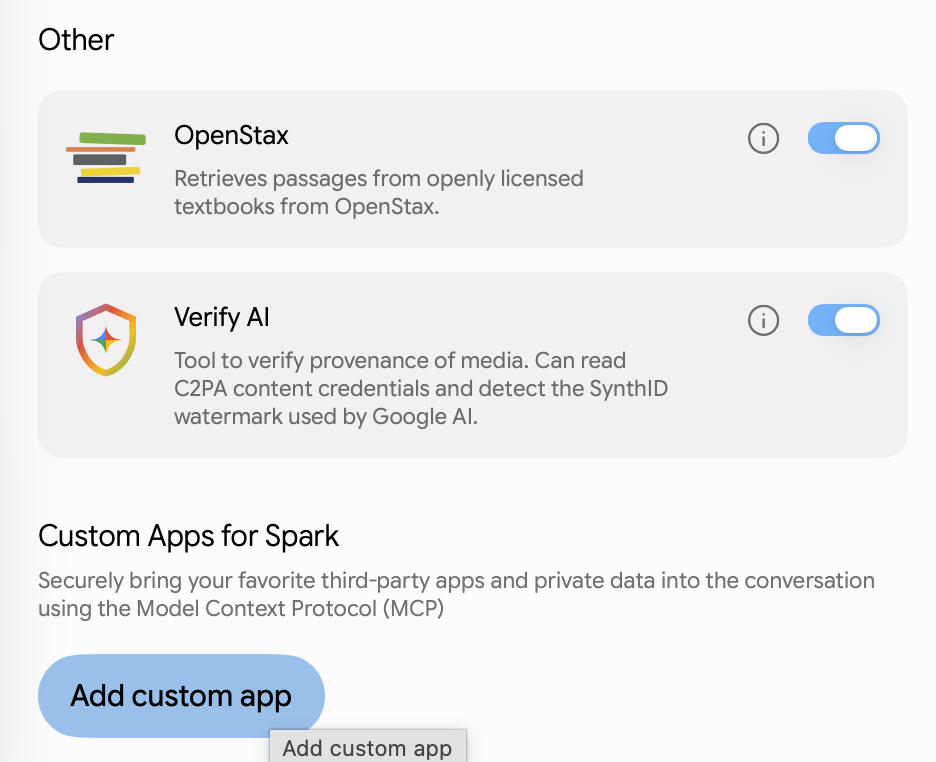
Custom MCP apps in Gemini are added as **Custom Apps for Spark**, and are available in Gemini Spark conversations.
{% endhint %}
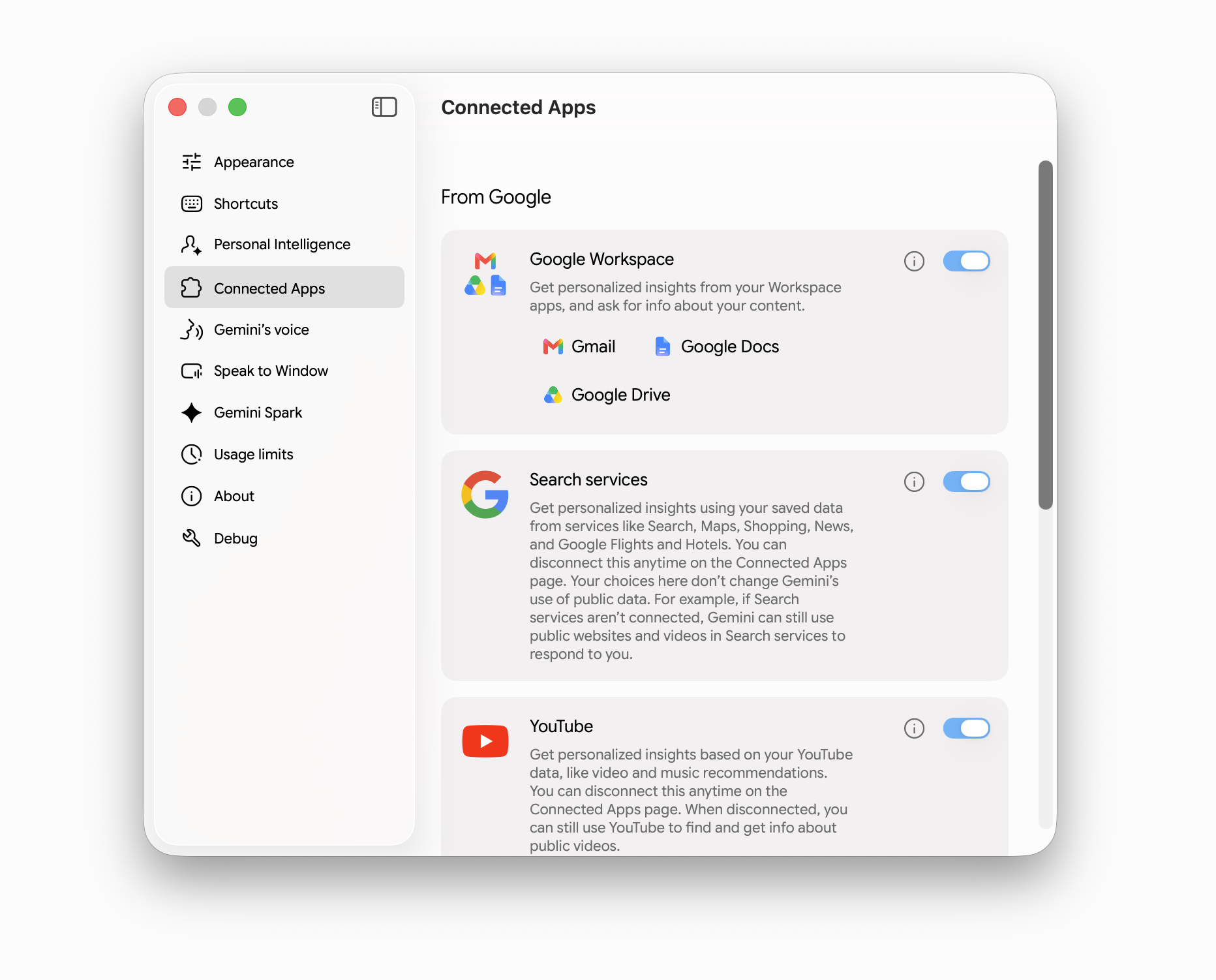
1. Go to **Settings > Connected Apps**.
2. Scroll to **Custom Apps for Spark** and click **Add custom app**.
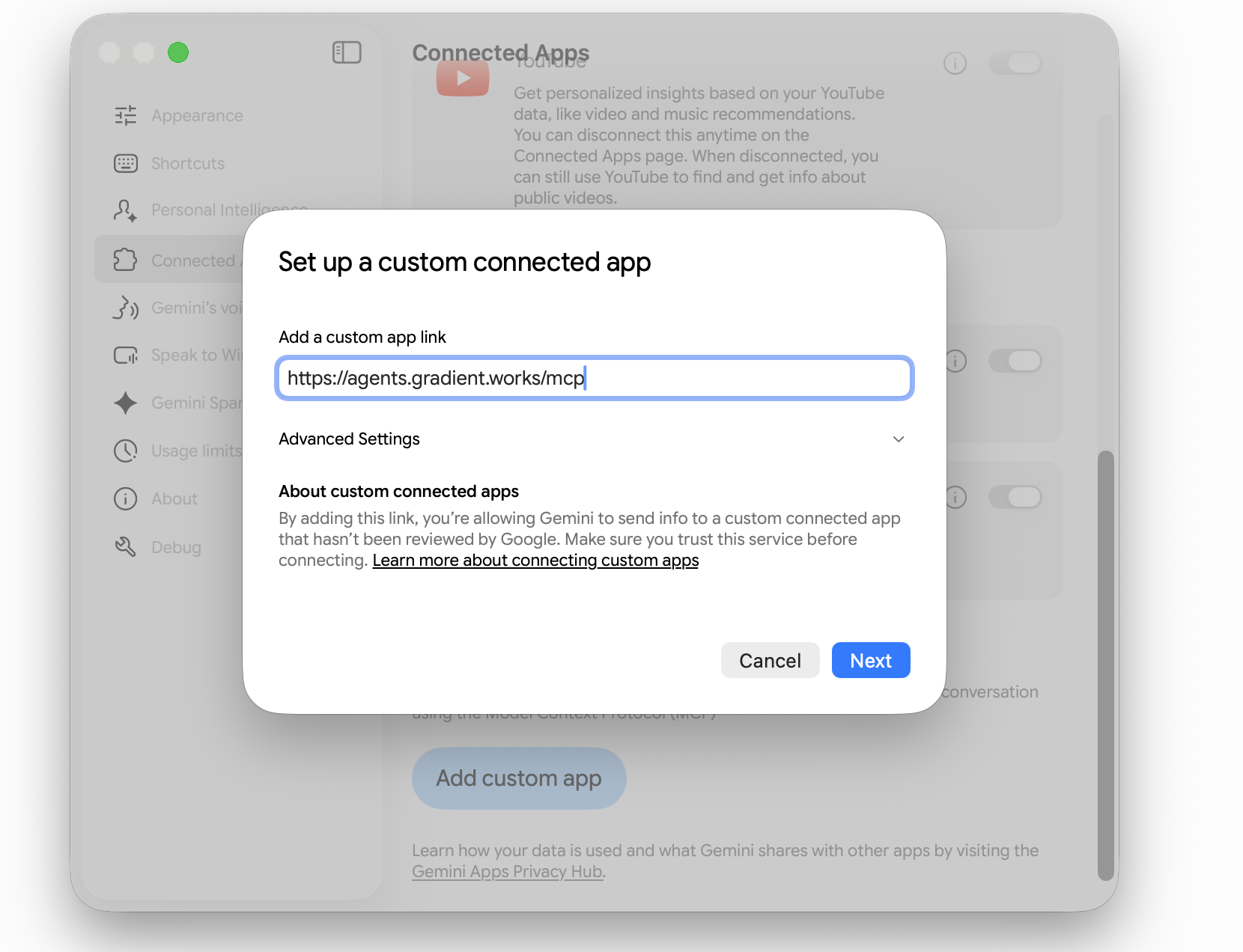
3. Enter the Gradient Works MCP server URL and click **Next**.
* **Add a custom app link:** `https://agents.gradient.works/mcp`
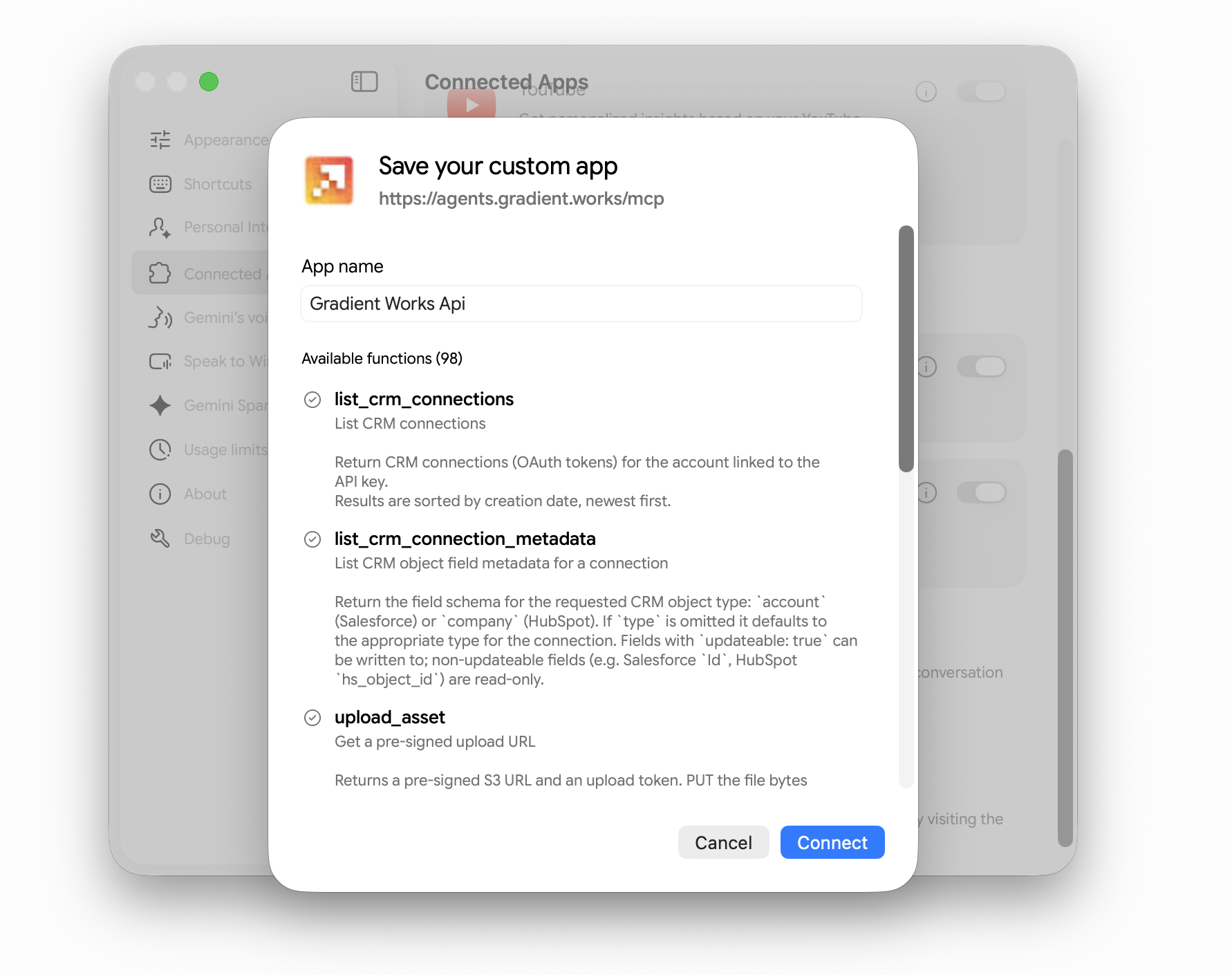
4. Give the app a name (for example, Gradient Works), review the available functions, and click **Connect**.
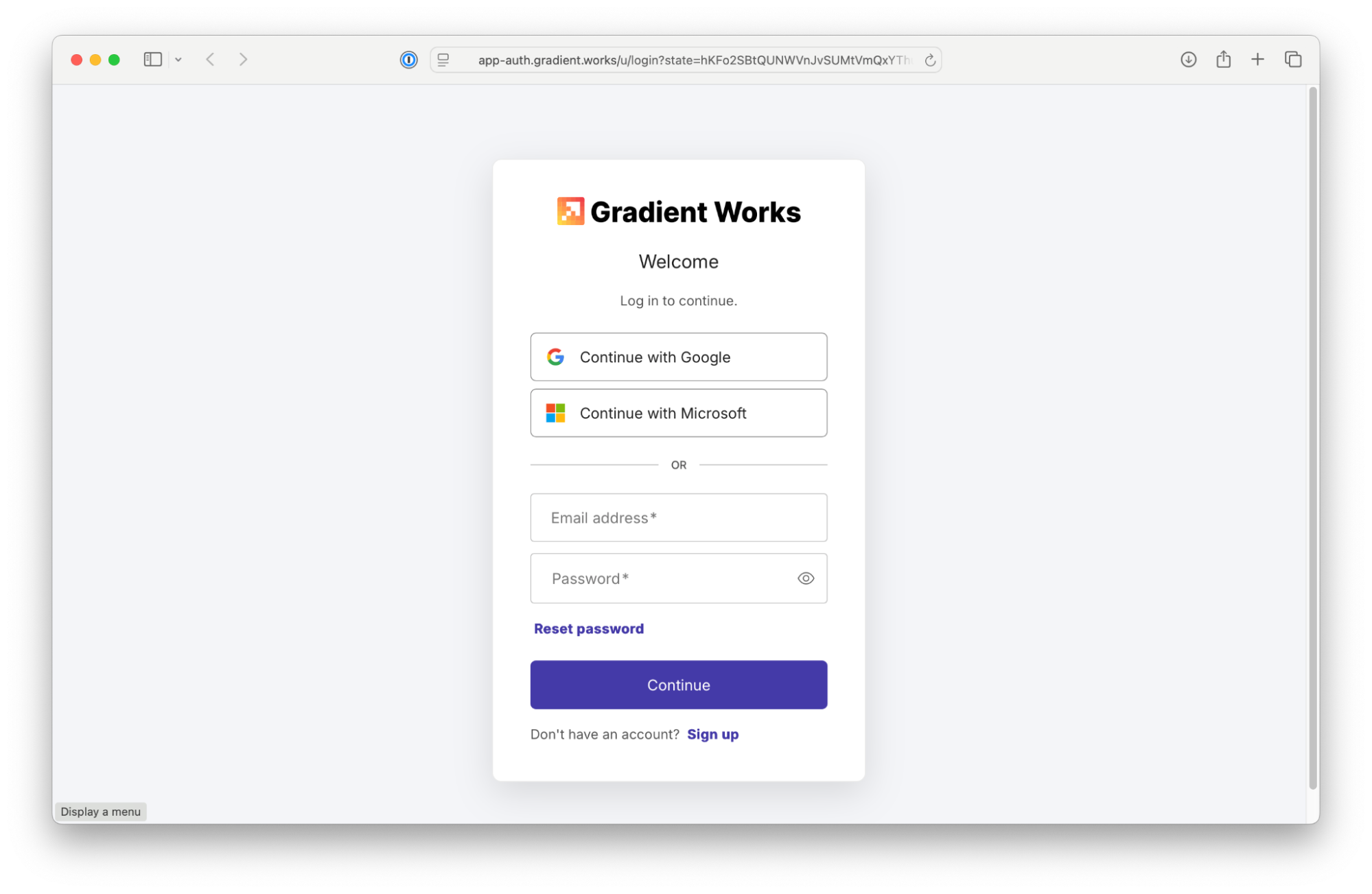
5. When prompted, sign into Gradient Works with your Gradient Works credentials.
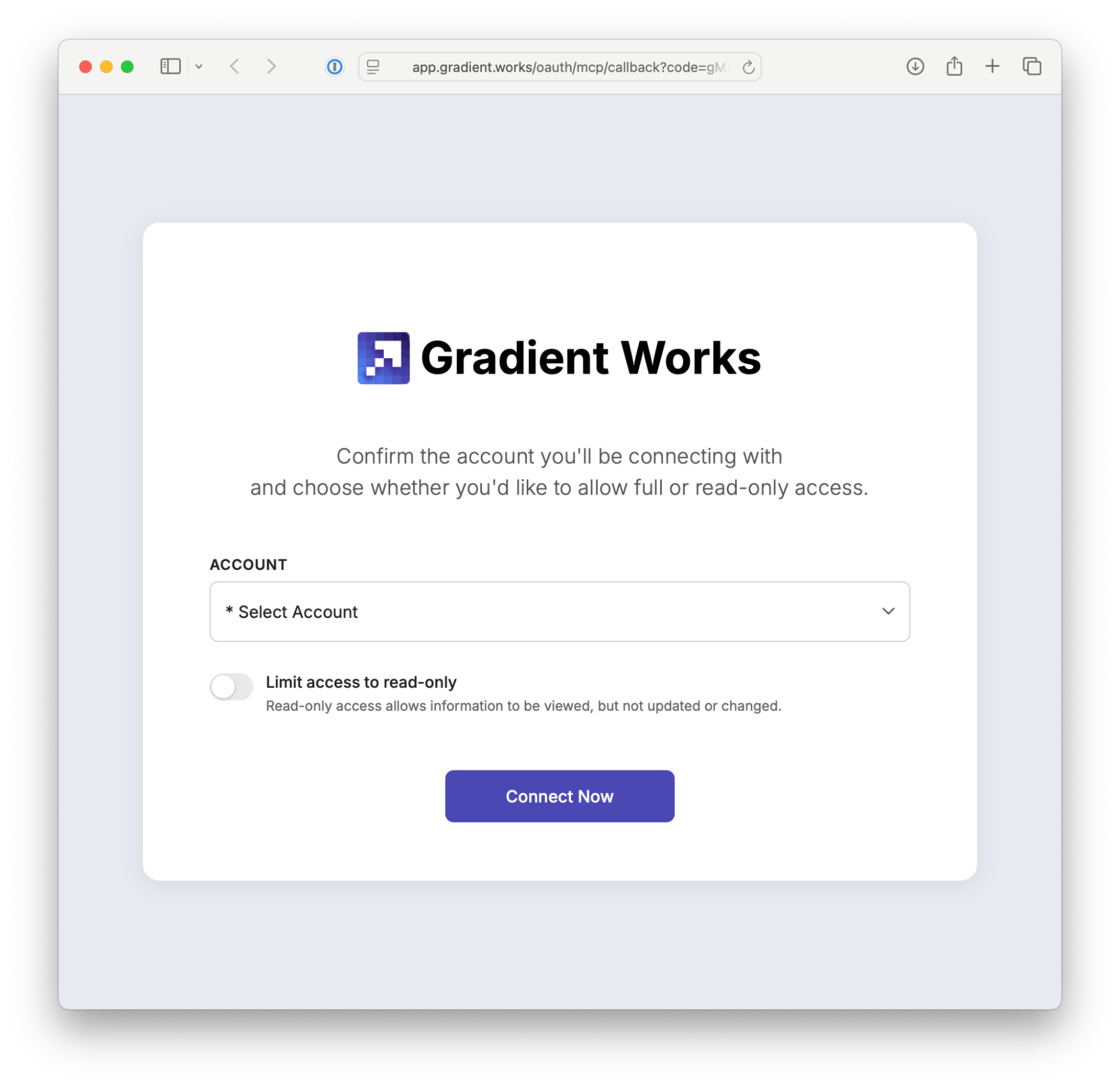
6. Select your account and permission settings as needed.
7. Click **Connect Now** to return to Gemini.
***
## Antigravity (API Key)
{% hint style="info" %}
Antigravity connects to the Gradient Works MCP server with an API key, so create your key first.
{% endhint %}
The Antigravity app, CLI, and IDE share the same MCP config file, so this setup only needs to be done once. Screenshots show the app.
### Get a Gradient Works API Key
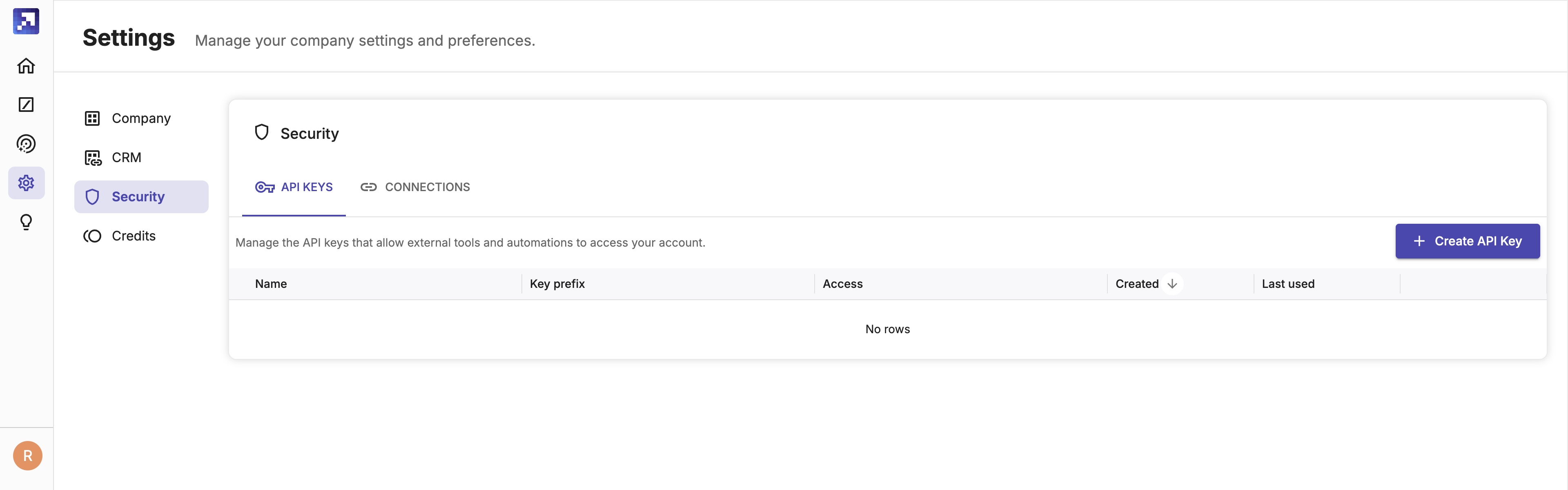
1. In Gradient Works, go to **Settings > Security > API Keys**.
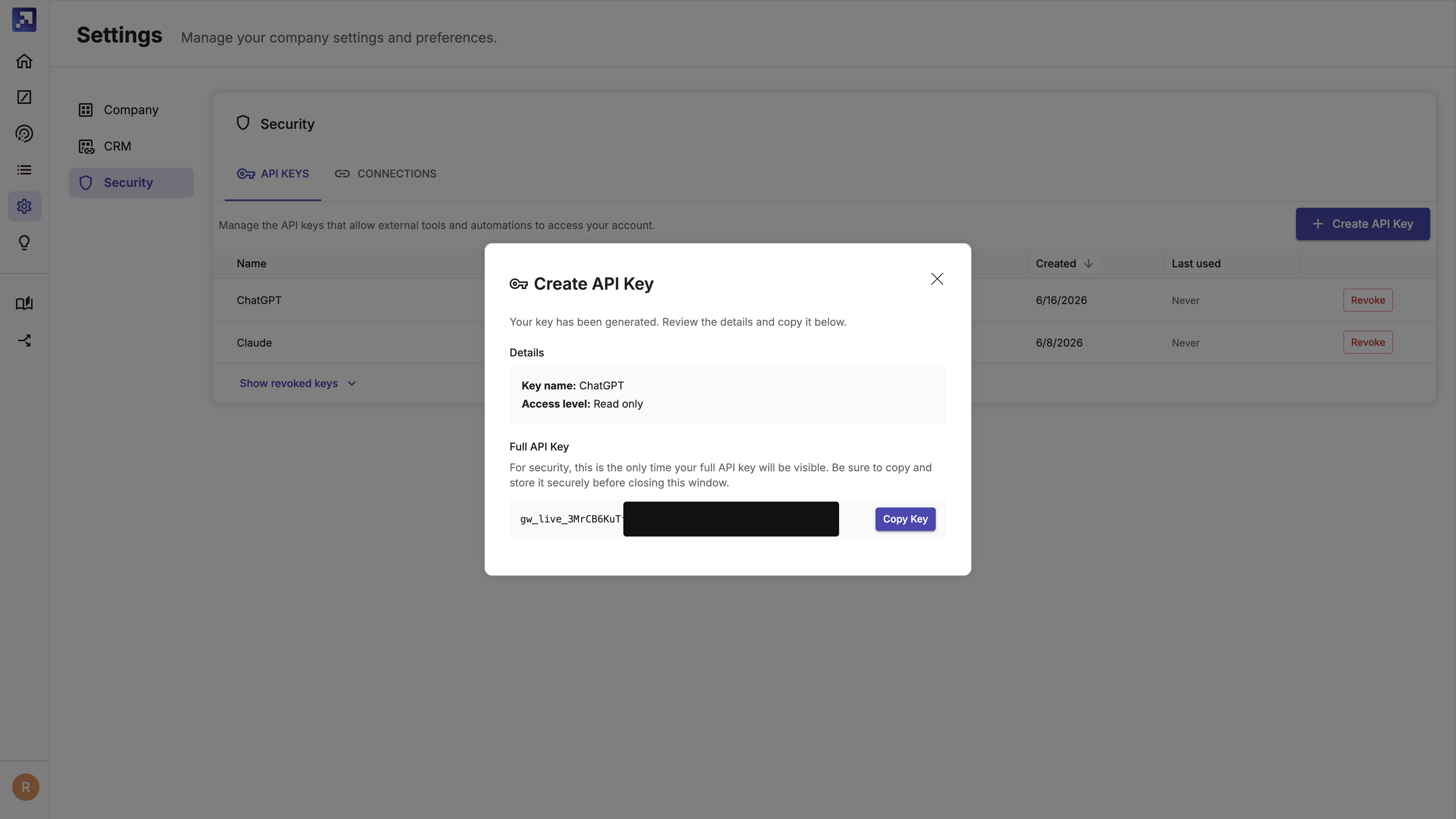
2. Click **Create API Key**, optionally give your key a name and set the access level, then click **Generate Key**.
3. Copy and store your API key securely — it will only be shown once.
### Add the MCP server
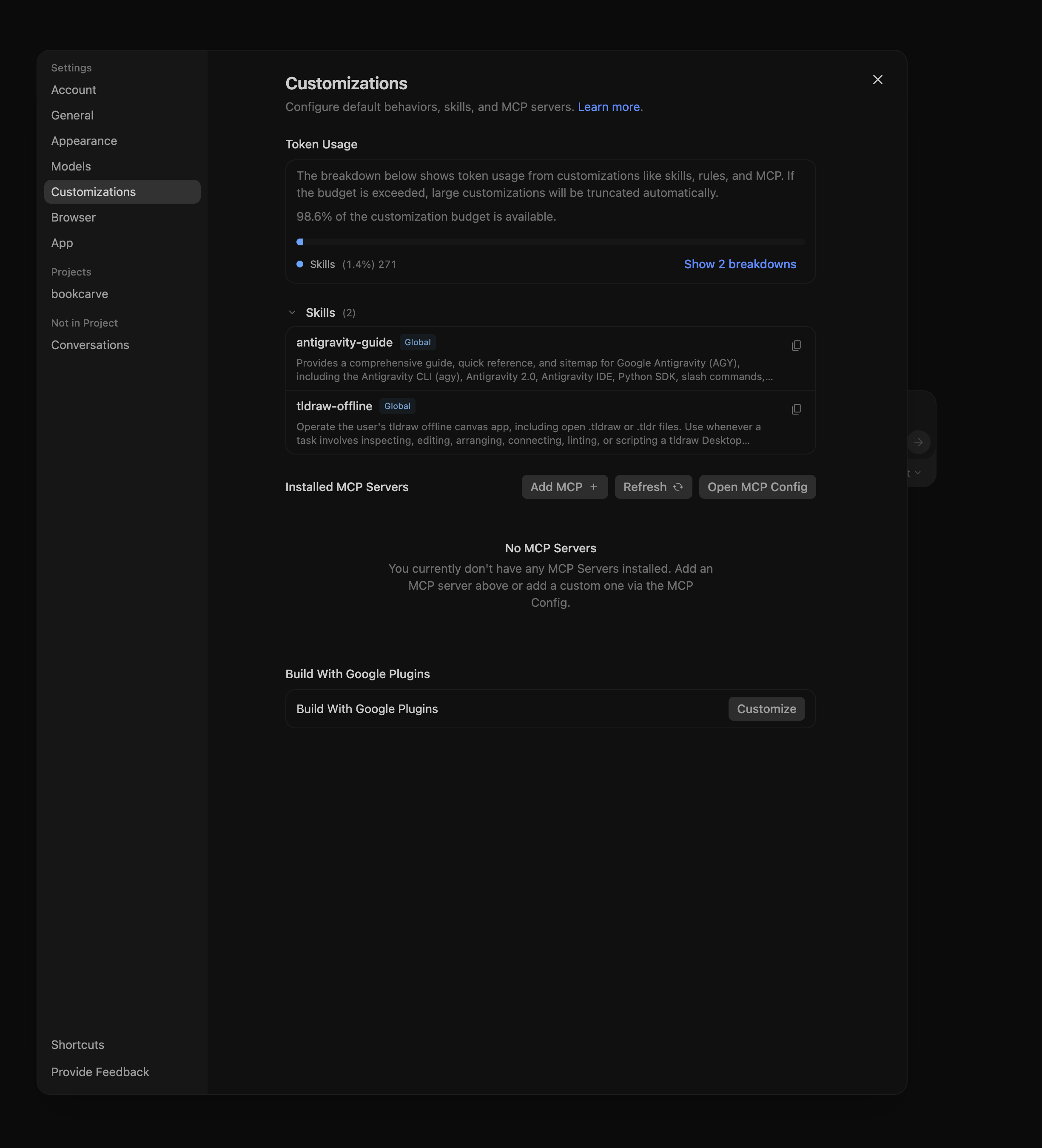
1. Go to **Settings > Customizations**.
2. Under **Installed MCP Servers**, click **Open MCP Config**.
3. Antigravity opens `mcp_config.json` in the editor. Add the Gradient Works server, replacing `gw_live_YOUR_KEY_HERE` with the API key you created:
```json
{
"mcpServers": {
"gradient-works": {
"serverUrl": "https://agents.gradient.works/mcp",
"headers": {
"Authorization": "Bearer gw_live_YOUR_KEY_HERE"
}
}
}
}
```
4. Save the file and click **Refresh** in the **Installed MCP Servers** section. Gradient Works will appear in the list with its available tools.